Configure Tenant connections (DNS and TLS)
This guide describes the post-creation DNS and TLS setup for a tenant's connections, focusing on Manual gateways only.
A tenant connection links a domain to one or more gateways. After creating a tenant, manual gateways require you to configure DNS records and install TLS certificates before the tenant is fully operational.
Prerequisites
Before configuring DNS and TLS, ensure you have:
- An existing tenant with connections (domains and assigned gateways) — see the Tenant Creation guide to create one
- At least one Manual gateway assigned to the tenant's connection — see the Gateway Creation guide for details on gateway types
- kubectl access to the target Kubernetes cluster where the gateway is deployed
- Access to the DNS provider for the domain used by the tenant (e.g., your domain registrar or DNS hosting service)
Accessing the Connections Page
From the Composer dashboard:
- Navigate to the Tenants section (
/tenants). - Click on a tenant to open its Tenant Overview page.
- In the sidebar, click Connections.
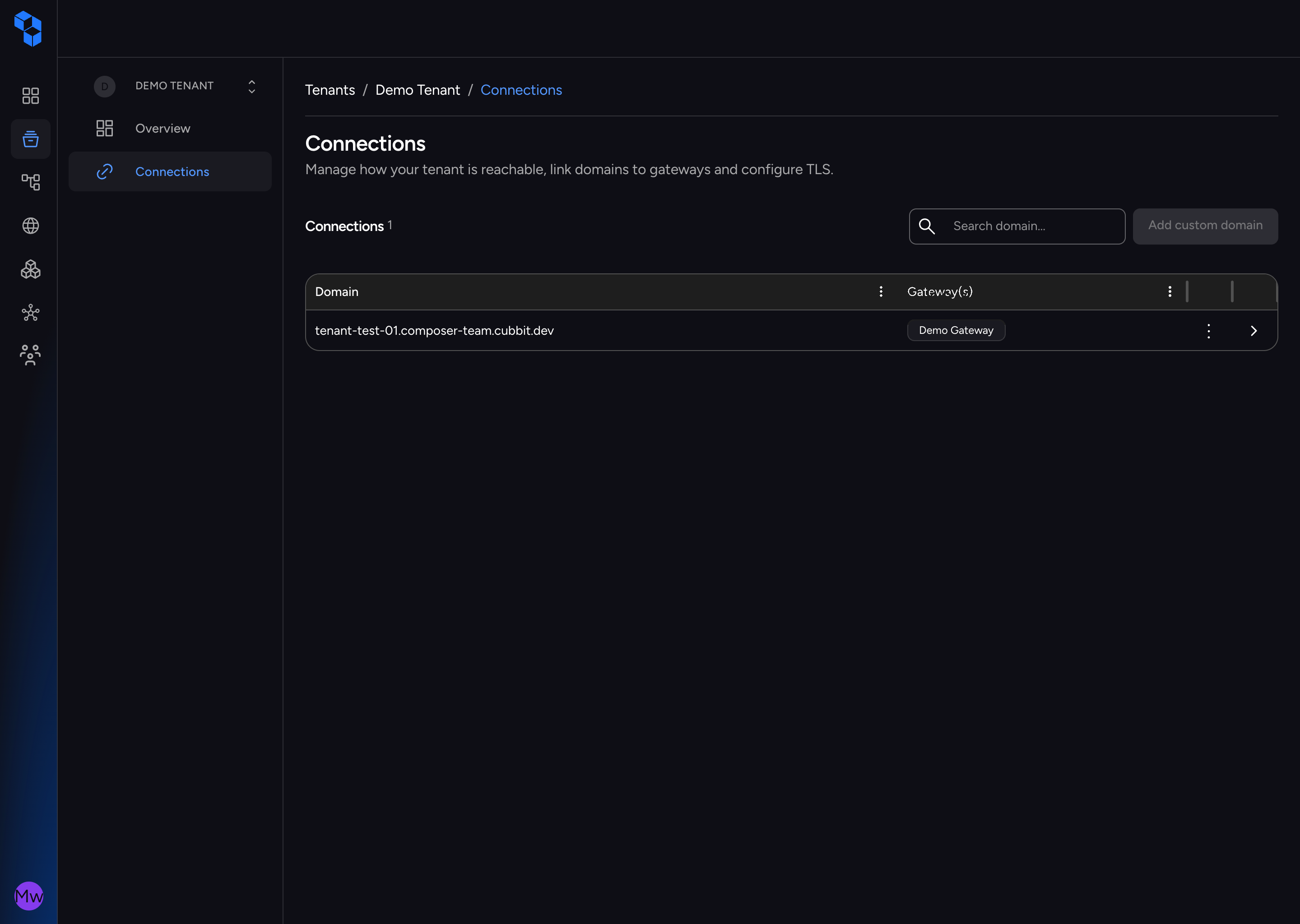
The Connections page displays a table listing all domain connections for the tenant.
Connections Overview Table
The Connections page shows a DataGrid table with one row per domain connection:
| Column | Description |
|---|---|
| Domain | The fully qualified domain name (e.g., app.mycompany.com). If a subdomain was configured, it appears as {subdomain}.{domain}. |
| Gateway(s) | Color-coded chips showing the type of each assigned gateway: Manual. Up to 3 chips are displayed; additional gateways appear as +N. |
Searching
Use the search bar at the top of the table to filter connections by domain name (case-insensitive search).
Opening the Connection Drawer
Click any row in the table to open the Connection Drawer — a slide-out panel on the right side of the screen. This drawer is your primary workspace for configuring DNS and TLS.
Connection Drawer — Gateways Tab
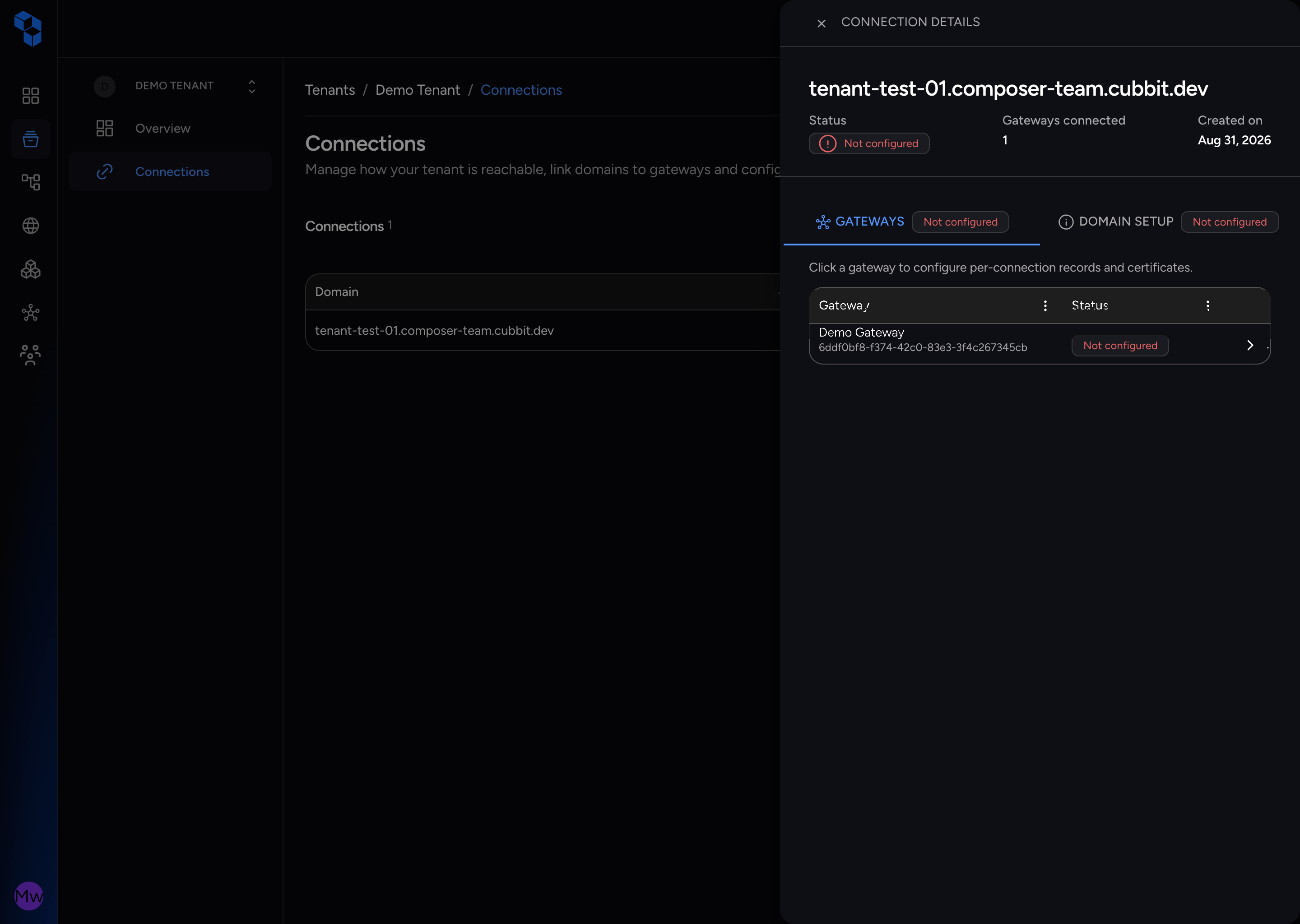
The Connection Drawer opens with two tabs: Gateways and Domain Setup. The Gateways tab is selected by default and shows a per-gateway status table.
Gateway Status
Each gateway row displays its current configuration status as a color-coded tag:
| Tag | Display Text | Meaning |
|---|---|---|
healthy (green) | Verified | All DNS and TLS requirements are satisfied for this gateway |
warning (yellow) | Partially configured | Some DNS records or TLS certificates are configured but not all |
error (red) | Not configured | No DNS or TLS configuration has been completed |
Columns
| Column | Description |
|---|---|
| Gateway | The name of the gateway (with a subtitle showing its location/cluster) |
| Type | Manual chip |
| Status | The configuration status tag with an icon |
| Actions | A chevron button to open the Gateway Details Drawer for that gateway |
Opening Gateway Details
Click the chevron (arrow) button on a gateway row to open the Gateway Details Drawer — a nested panel that slides in over the Connection Drawer, scoped to that specific gateway.
Gateway Details Drawer
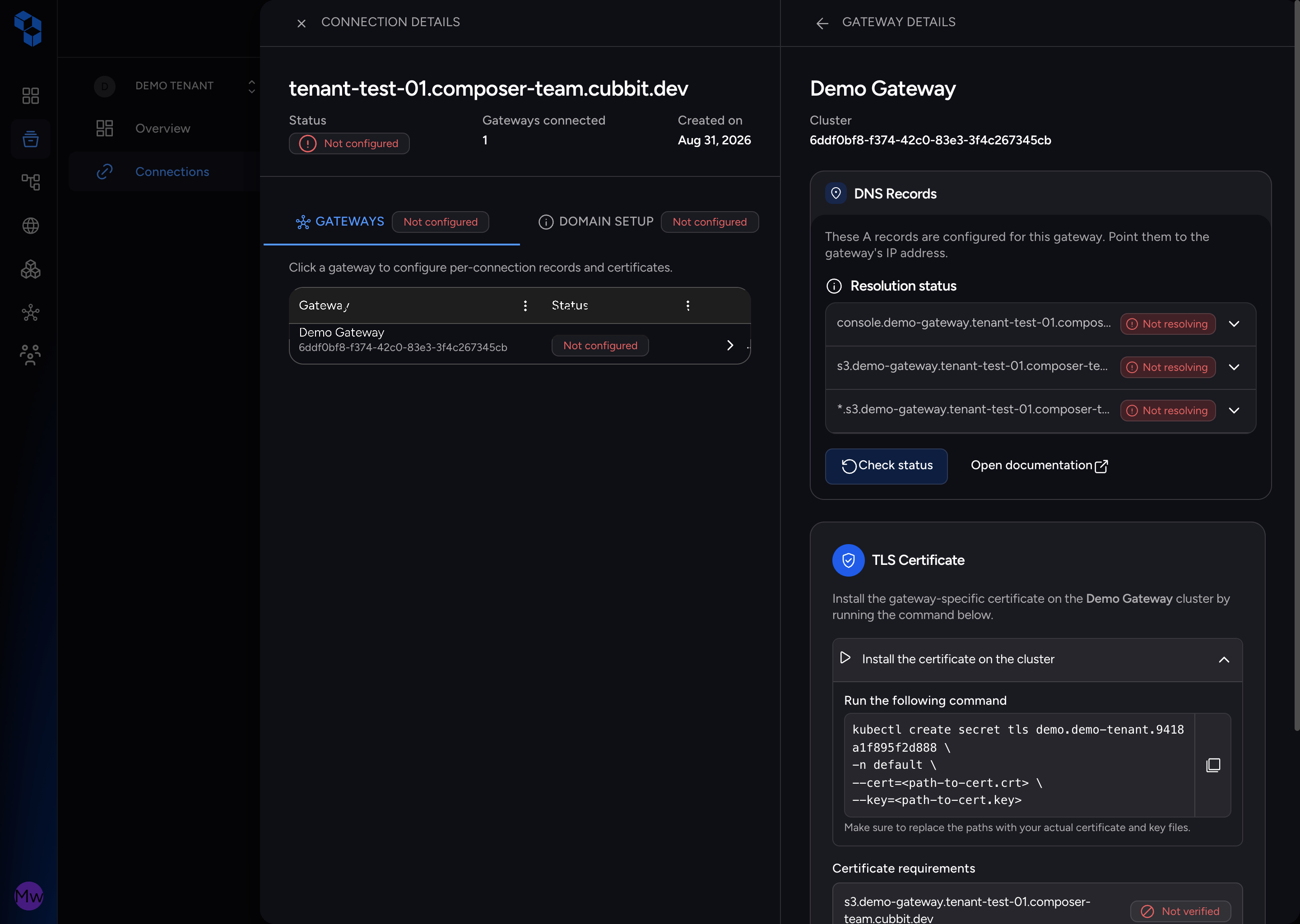
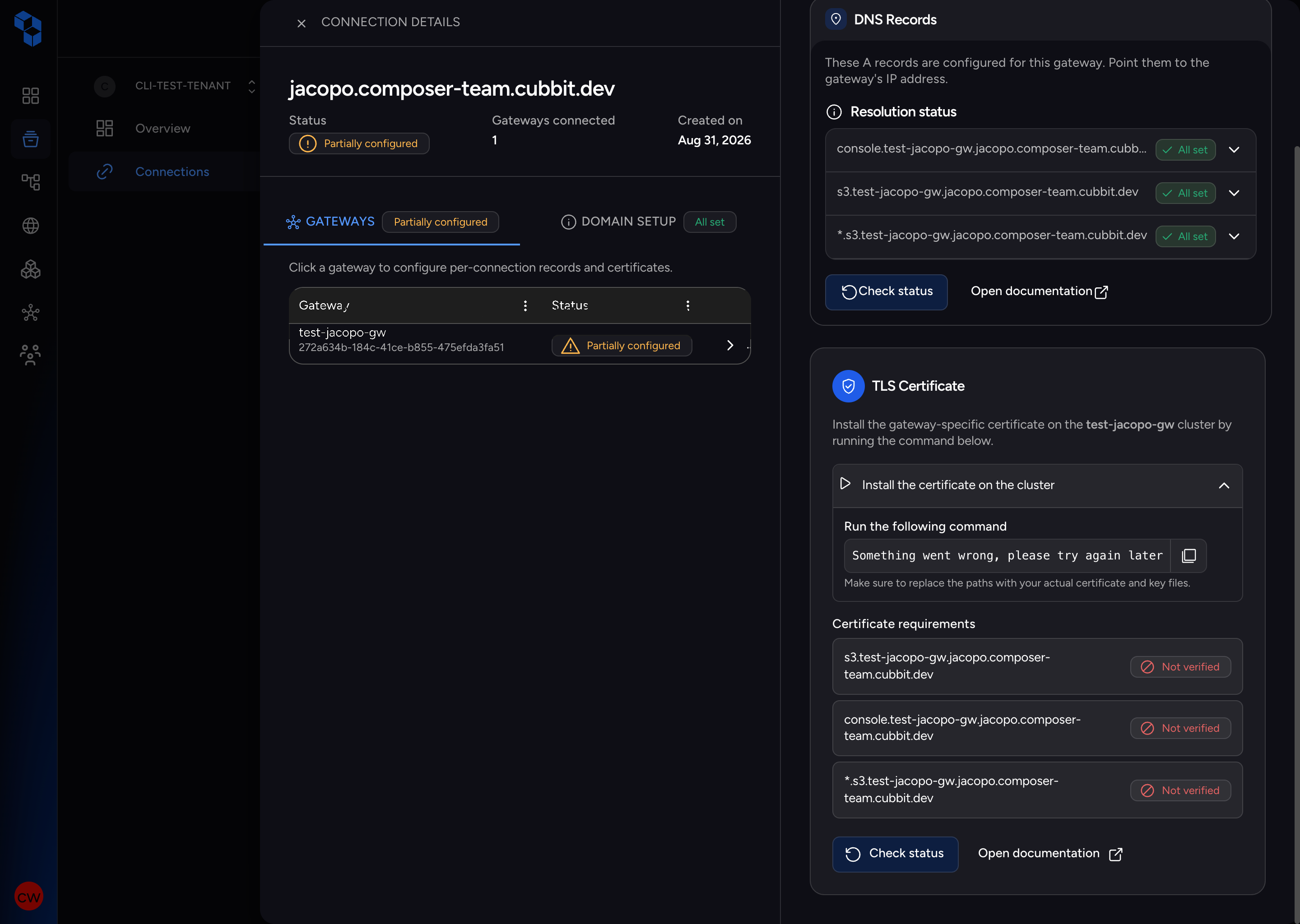
The Gateway Details Drawer shows DNS records and TLS certificate information scoped to a single gateway.
DNS Records Section
The DNS Records card displays the three FQDN records that must be configured for this gateway:
| Record | FQDN Pattern | Purpose |
|---|---|---|
| Console | console.{subdomain}.{domain} or console.{domain} | The Composer dashboard access URL |
| S3 | s3.{subdomain}.{domain} or s3.{domain} | The S3 API endpoint URL |
| Wildcard S3 | *.s3.{subdomain}.{domain} or *.s3.{domain} | Wildcard S3 access for virtual-hosted-style requests |
Each record shows its current resolution status and includes a Check Status button to re-verify DNS resolution.
TLS Certificate Section
The TLS Certificate card shows:
- Configuration variant (default): Per-gateway domain entries with verification status and a
kubectl create secret tlsinstall command. - Completed variant: When a certificate is installed, shows certificate expiry details, an
inspectcommand for viewing the certificate, and anupdatecommand for renewal.
Each domain entry displays its status:
| Status | Meaning |
|---|---|
| Verified (green) | The TLS certificate is properly installed for this domain |
| Not verified (red) | The TLS certificate has not been installed yet |
Connection Drawer — Domain Setup Tab
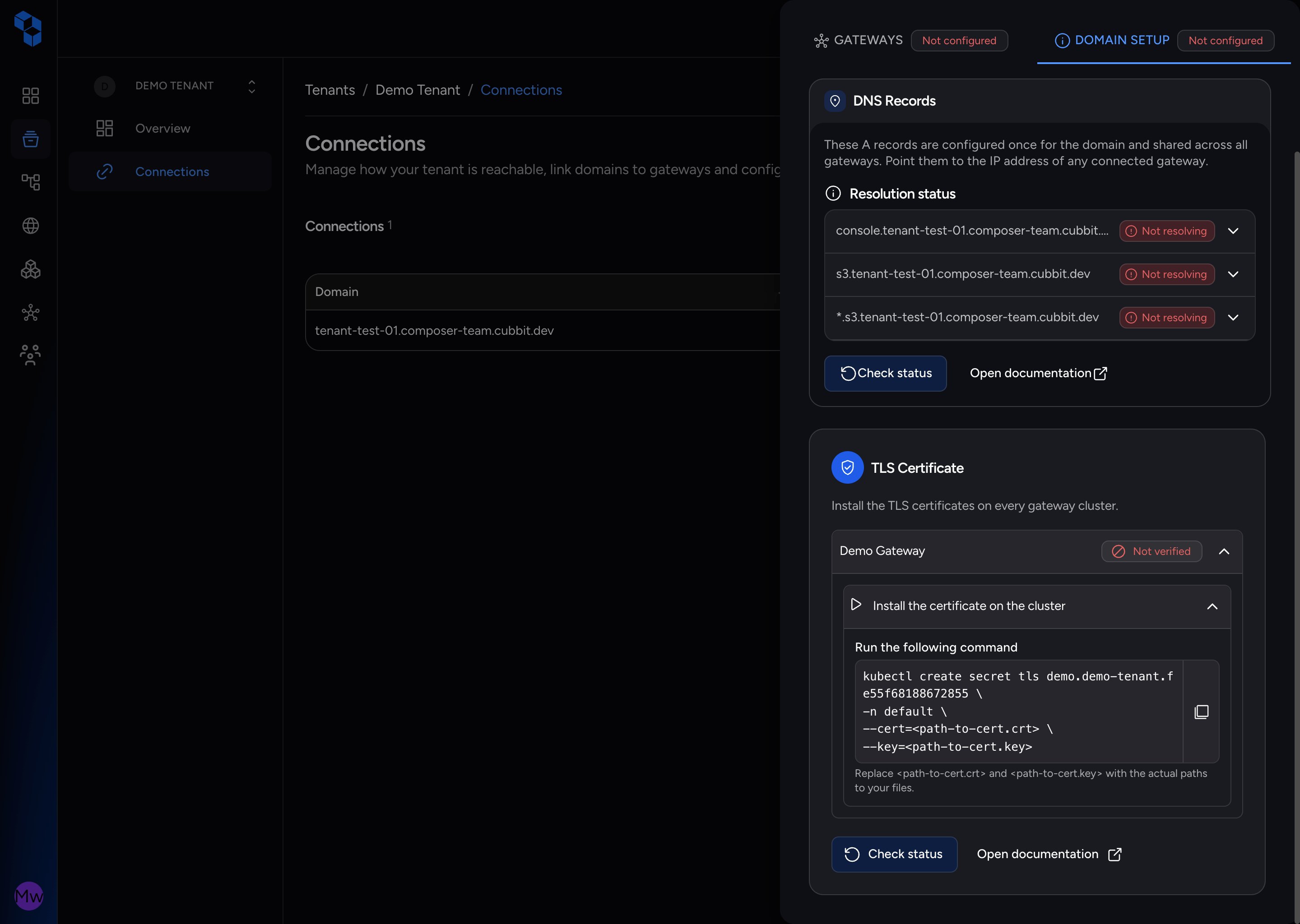
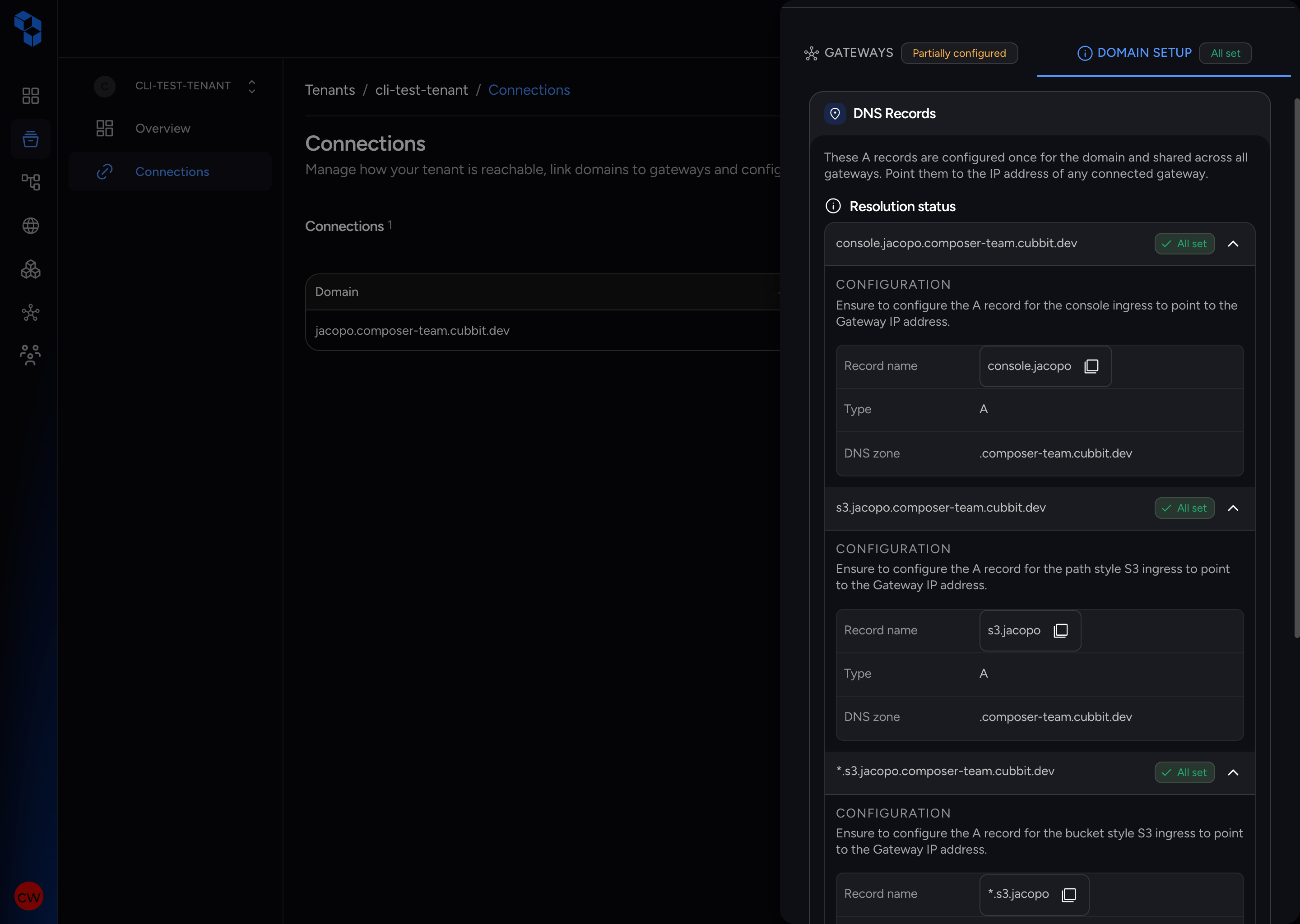
The Domain Setup tab provides an aggregated view of DNS records and TLS certificates across all gateways for the connection.
DNS Records Card
The DNS Records card displays the three core FQDN records for the connection, aggregated across all gateways:
| Field | Description |
|---|---|
| URL | The FQDN (e.g., console.app.mycompany.com) |
| Status | Resolution status indicator (All set or Not resolving) |
| Record Name | The DNS record name (e.g., console, s3) |
| Record Type | A |
| DNS Zone | The parent DNS zone (e.g., .app.mycompany.com) |
| Configuration | A description of what the record should point to |
The Check Status button triggers a re-verification of all DNS records across all gateways.
TLS Certificate Card
The TLS Certificate card shows the certificate status across all gateways:
- Configuration variant: Gateway clusters are listed as accordion rows. Each cluster shows its
kubectl create secret tlsinstall command. Expand the accordion to reveal the command. - Completed variant: When certificates are installed on all gateways, shows a success message with certificate expiry details per cluster.
Both variants display per-gateway domain entries indicating whether each gateway's TLS certificate is verified or not verified.
DNS Record Reference
For each connection, you need to configure three DNS records with your provider. The exact values depend on the gateway IP address provided in the Gateway Details Drawer.
Note: These are abstract FQDN descriptions. The specific record type (A, CNAME, etc.) depends on your DNS provider and infrastructure setup. In most cases, A records pointing to the gateway's public IP address are used.
| FQDN | Description | TTL Recommendation |
|---|---|---|
console.{domain} | The web dashboard URL for tenant customers and administrators | 300 seconds (5 minutes) |
s3.{domain} | The S3-compatible API endpoint for S3 client tools and applications | 300 seconds (5 minutes) |
*.s3.{domain} | Wildcard record for virtual-hosted-style S3 requests (e.g., bucket.s3.{domain}) | 300 seconds (5 minutes) |
During initial setup, use a low TTL (300 seconds) so changes propagate quickly. After verifying everything is working, you can increase the TTL to reduce DNS query load.
Tip: Configure the DNS records before proceeding to TLS certificate installation. DNS must resolve correctly for certificate verification to succeed.
TLS Certificate Configuration
Once DNS records are configured and resolving, install TLS certificates on each gateway's Kubernetes cluster using the commands provided by the Composer UI.
Obtaining the Commands
- Open the Connection Drawer for your domain connection.
- Navigate to the Domain Setup tab.
- In the TLS Certificate card, expand a gateway accordion.
- Copy the
kubectl create secret tlscommand shown in the expandable section.
Alternatively, open the Gateway Details Drawer for a specific gateway and copy the install command from the TLS Certificate card.
Installing the Certificate
Run the install command you copied from the TLS Certificate card against your target Kubernetes cluster. This command creates a TLS secret in the gateway's namespace using your certificate and key files.
Inspecting an Installed Certificate
To verify a certificate after installation, use the inspect command shown in the completed variant of the TLS Certificate card. This command retrieves the secret and decodes the certificate for inspection.
Updating or Renewing a Certificate
If the certificate is expiring or needs to be replaced, use the update command provided in the completed variant of the TLS Certificate card. This command performs a kubectl create secret tls with --dry-run=client -o yaml piped to kubectl apply -f - to update the secret in-place.
Verification Workflow
After configuring DNS records and installing TLS certificates, use the Check Status button to verify everything is working.
Triggering Verification
- Open the Connection Drawer for the connection you want to verify.
- Click Check Status on the DNS Records card or the Gateway Details Drawer.
- The system polls the DNS resolution and certificate status.
Interpreting Status Tags
After verification, each record and gateway displays an updated status:
| Scope | Backend Status | UI Tag | Display Text | Meaning |
|---|---|---|---|---|
| DNS record | certificate_ok | healthy (green) | All set | DNS resolves and the TLS certificate is correctly installed |
| DNS record | dns_ok | healthy (green) | All set | DNS resolves to the correct gateway; the TLS certificate may not be installed yet (shown in the TLS Certificate card) |
| DNS record | unset | error (red) | Not resolving | The DNS record is not resolving |
| Gateway row | all records certificate_ok | healthy (green) | Verified | Every DNS record resolves on this gateway and the TLS certificate is installed |
| Gateway row | at least one record resolves, but not all records are certificate_ok | warning (yellow) | Partially configured | The gateway is not fully configured yet: some records may be pending and/or the TLS certificate is missing |
| Gateway row | no record resolves | error (red) | Not configured | No DNS record is resolving for this gateway |
| Domain Setup tab | all records certificate_ok | healthy (green) | All set | Every DNS record resolves and all TLS certificates are installed |
| Domain Setup tab | no record is unset, but TLS is incomplete | warning (yellow) | Partially configured | DNS is resolving, but at least one TLS certificate is not installed |
| Domain Setup tab | any record unset | error (red) | Not configured | At least one DNS record is not resolving |
Overall Connection Status
The connection-level status tag (shown at the top of the Connection Drawer) aggregates the state across all gateways:
| Aggregated Status | Meaning |
|---|---|
| Connected (green) | All gateways are fully configured (DNS + TLS) |
| Partially configured (yellow) | Some gateways are configured, others are not |
| Not configured (red) | No gateways have DNS or TLS configured |
Note: DNS propagation can take time. If you have just added or updated DNS records, wait a few minutes and try the Check Status button again.
Troubleshooting
Common Issues
| Issue | Cause | Fix |
|---|---|---|
| DNS verification keeps failing | DNS records are not yet propagated or are pointing to the wrong IP | Verify the A record values against the gateway IP shown in the Gateway Details Drawer. After updating DNS records, allow time for DNS propagation (see the DNS Propagation section below for expected timelines). |
| TLS certificate verification failed | The certificate has not been installed, or was installed with the wrong secret name or namespace | Run the kubectl create secret tls command exactly as shown in the UI. Verify the namespace and secret name match. |
| Verification timeout | The DNS or certificate endpoint is unreachable from the verification service | Check that the gateway is online and the DNS resolves to its public IP. Verify network connectivity. |
| Stale verification state | The status tag has not updated after fixing the underlying issue | Click Check Status to trigger a fresh verification. The UI polls the backend, which re-checks DNS and certificate state. |
| Multiple gateways show mixed status | Some gateways are configured while others are not | Complete DNS and TLS configuration for all gateways. Each gateway requires its own DNS records and TLS certificate installation. |
| Certificate expiry soon | The installed TLS certificate is close to expiration | Use the update command from the TLS Certificate card to replace the certificate before it expires. |
Status Mapping Reference
| Scope | UI Tag | Display Text | Interpretation |
|---|---|---|---|
| DNS record | all_set | All set | DNS record resolves to the correct gateway (dns_ok or certificate_ok) |
| DNS record | not_resolving | Not resolving | DNS record is not configured or not yet propagated (unset) |
| Gateway row | healthy (green) | Verified | All records resolve on the gateway and the TLS certificate is installed (all certificate_ok) |
| Gateway row | warning (yellow) | Partially configured | At least one record resolves, but the gateway is not fully configured yet |
| Gateway row | error (red) | Not configured | No record resolves on the gateway |
| Domain Setup tab | healthy (green) | All set | Every record resolves and all TLS certificates are installed |
| Domain Setup tab | warning (yellow) | Partially configured | DNS resolves but at least one TLS certificate is missing |
| Domain Setup tab | error (red) | Not configured | At least one DNS record is not resolving |
DNS Propagation
After adding or updating DNS records:
| Timeframe | Expected Behavior |
|---|---|
| 0—5 minutes | Records may not be visible due to DNS caching |
| 5—30 minutes | Most DNS providers propagate changes globally |
| 30+ minutes | If records are still not resolving, check the record values and provider configuration |