Sign up for Cubbit Composer
This guide describes how to create a Cubbit Composer account and reach the dashboard:
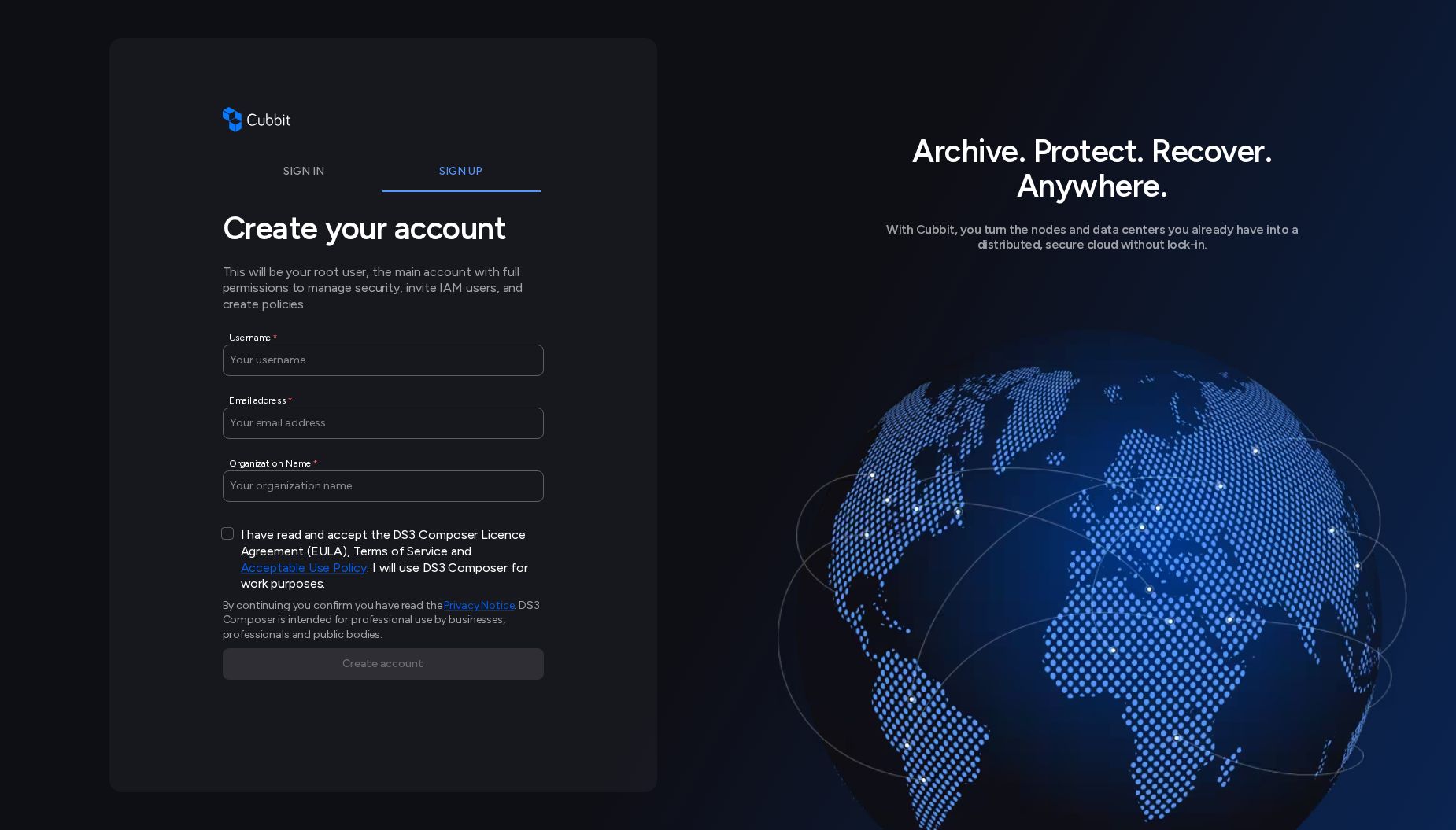
1. Fill Out the Signup Form
On the signup page, you will be asked to provide:
- Username: Your personal identifier for logging in.
- Email: The email address will act as a unique point of contact, since it can be used to recover credentials and access to the organization.
- Organization Name: The name of your new organization. This will be created as part of the signup process.
- Terms acceptance (required): you must confirm you have read and accept the DS3 Composer Licence Agreement (EULA), Terms of Service and Acceptable Use Policy, and that you will use DS3 Composer for work purposes. The Acceptable Use Policy opens the current document in a new tab.
Note: It is not possible to create multiple organizations using the same email address. Each email can only be associated with a single organization as the root account.
2. (Optional) Marketing Information
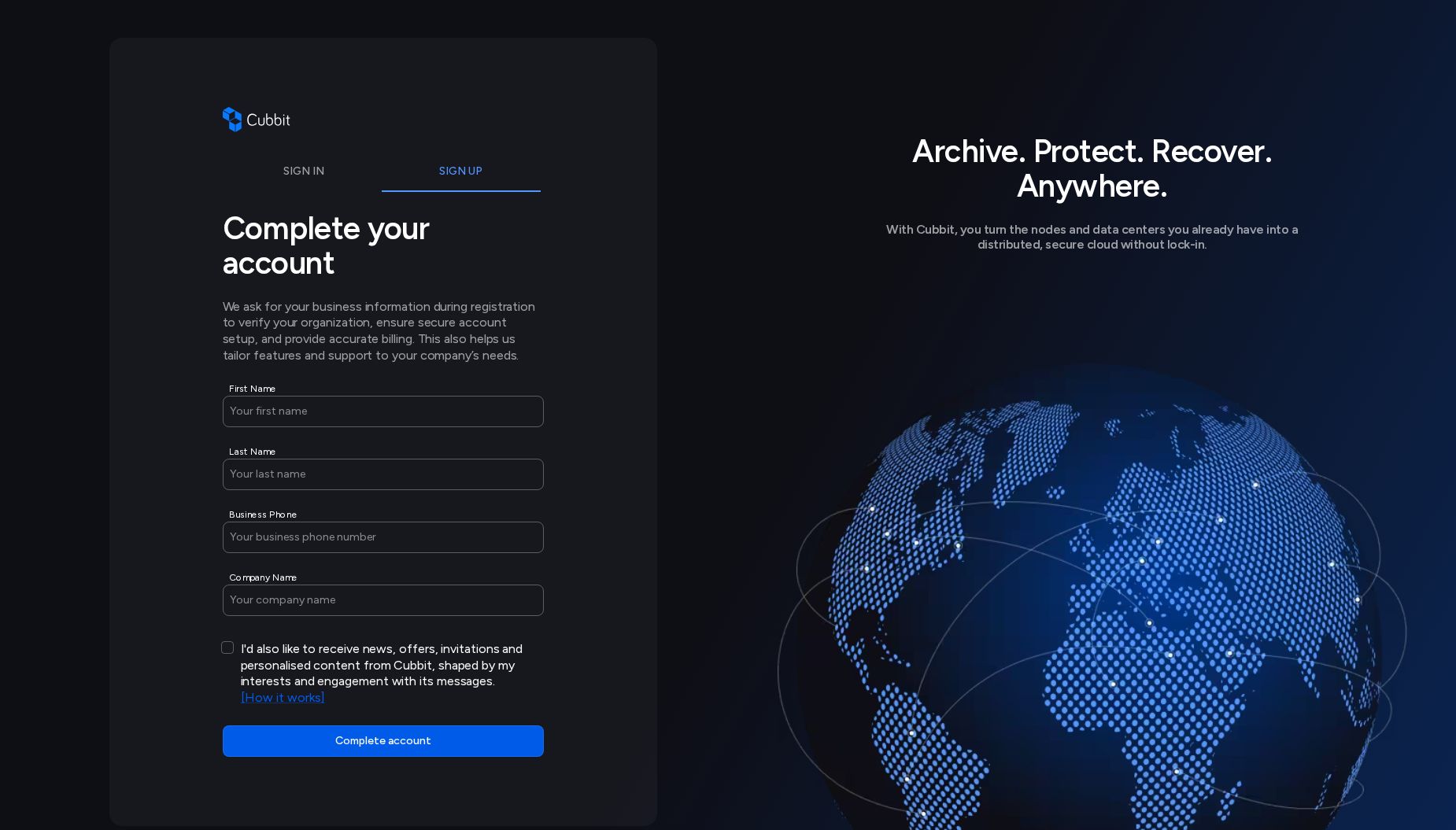
After submitting the signup form, you will be presented with an optional step to provide additional marketing information:
- First Name
- Last Name
- Business Phone
- Company Name
- Personalised communications consent (optional): an unchecked checkbox to opt in to news, offers, invitations and personalised content from Cubbit. The How it works link next to it opens the section of the Privacy Notice that explains how personalisation works.
You may skip this step if you prefer not to provide this information.
3. Email Verification Notice
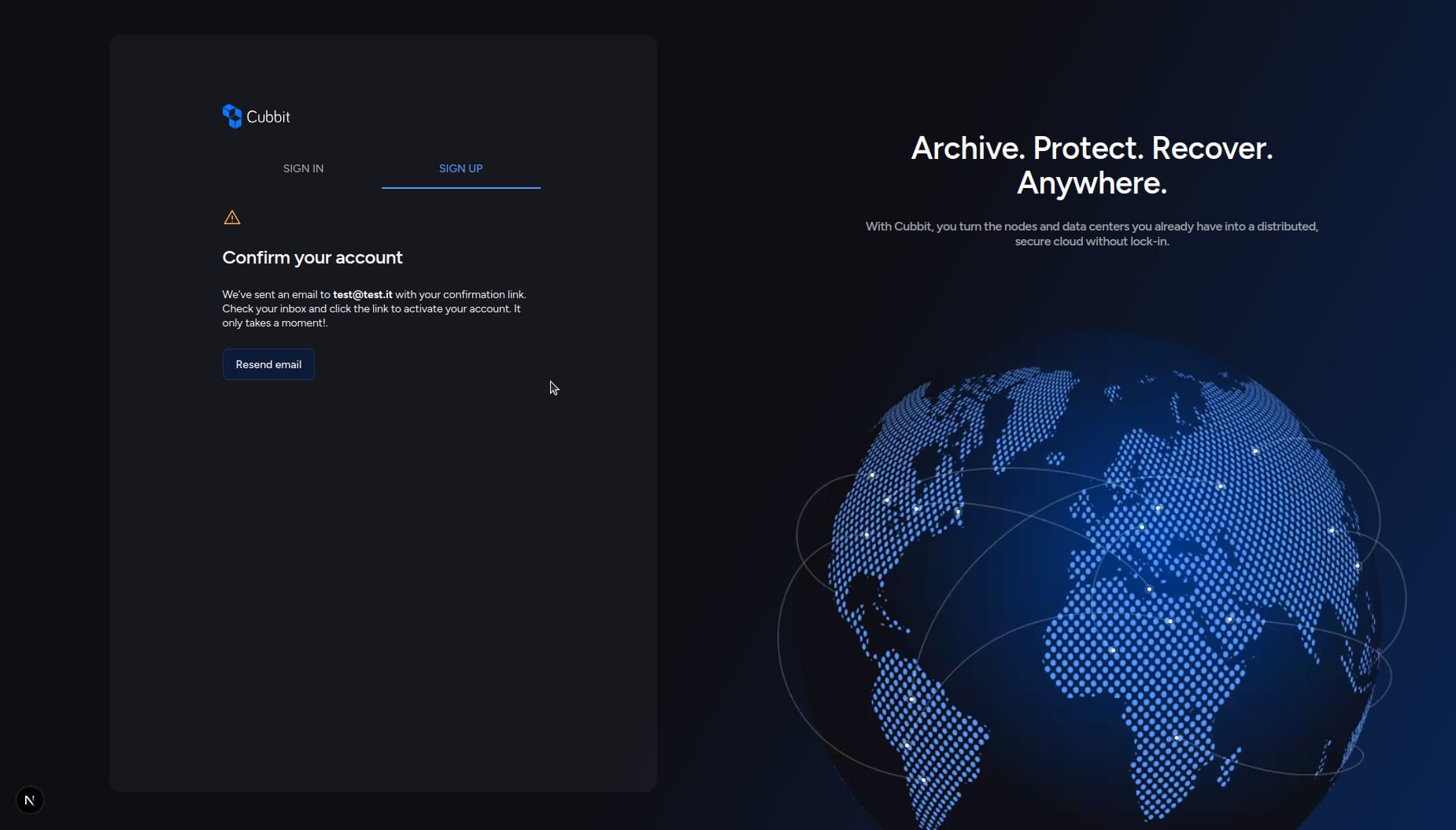
Once you complete the previous steps, you will see a confirmation screen advising that a verification email has been sent to your address.
This screen includes:
- A message informing you that an email has been sent with instructions to verify your account and set your password.
- A button to Resend Email in case you did not receive the email.
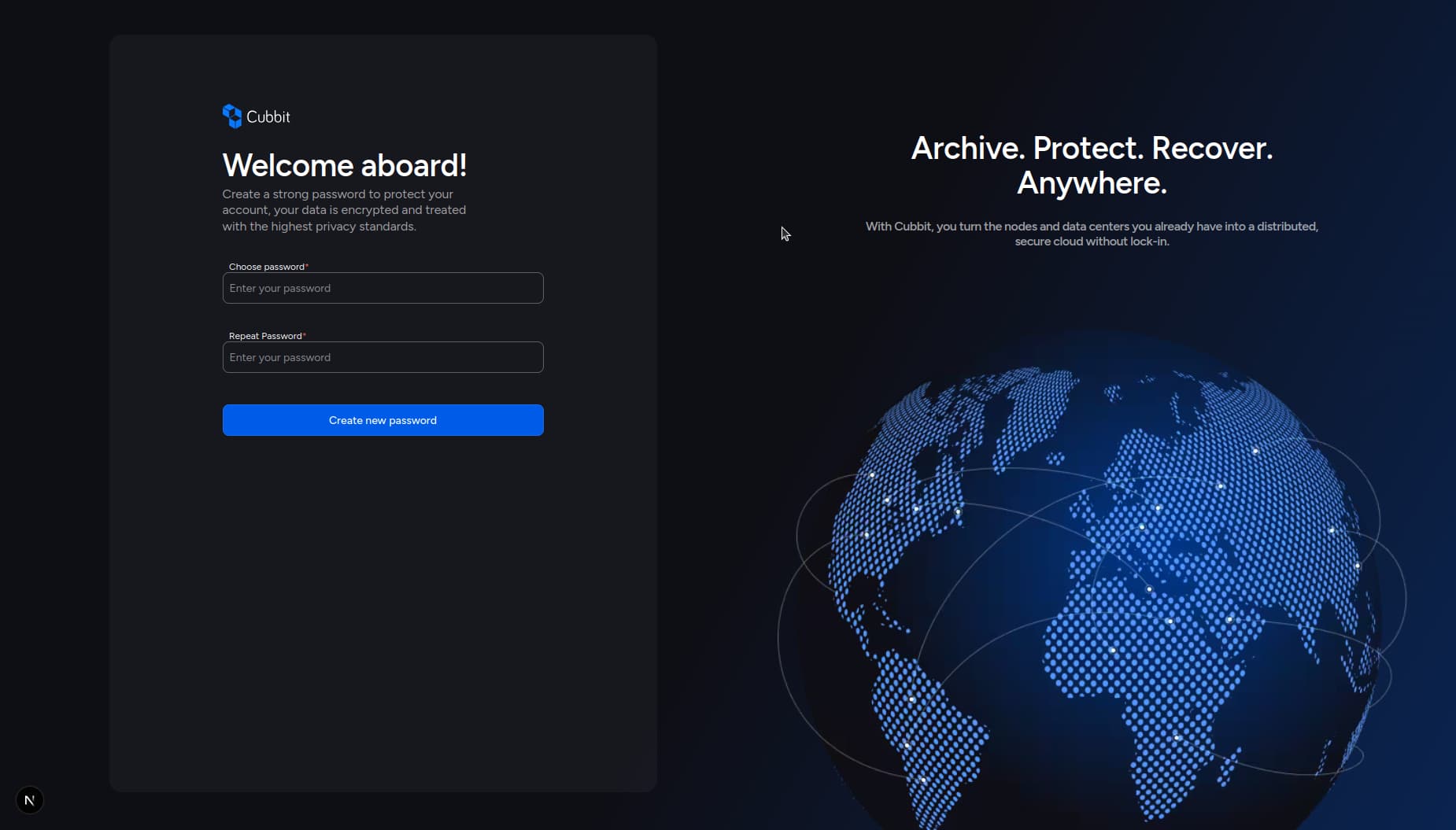
4. Verify Your Email & Set Password
Open the verification email and click "Set password".
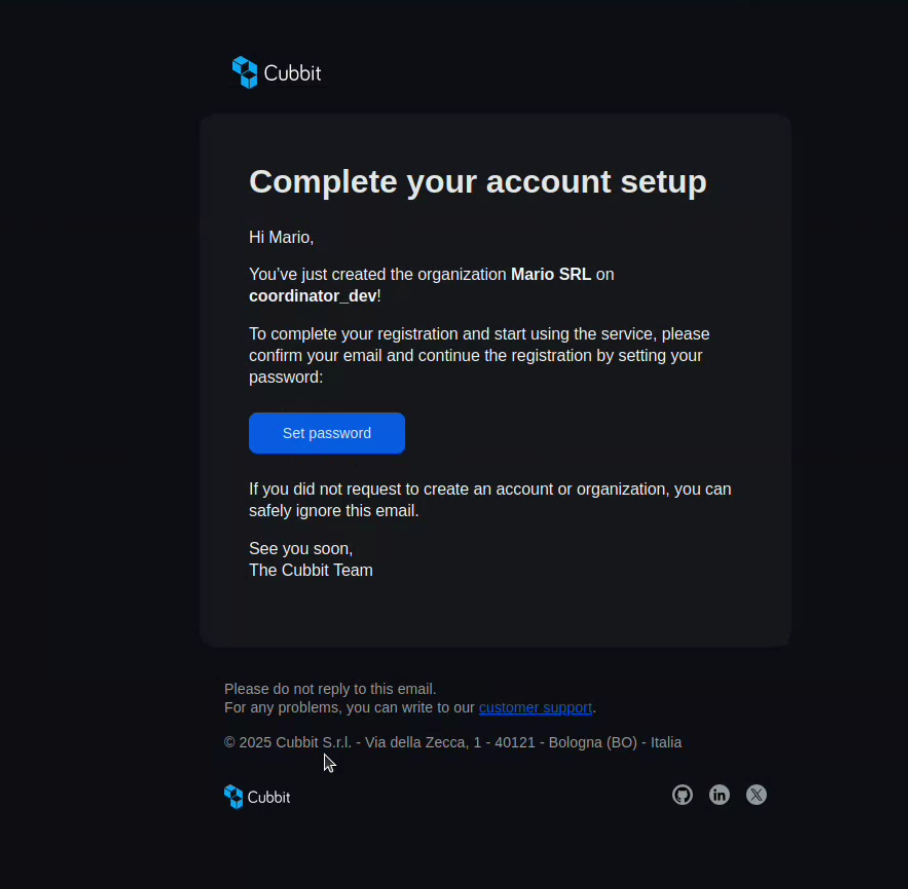
You will be redirected to a page where you can set your account password.
5. Access the Dashboard
- After setting your password, you will be automatically logged in and redirected to the dashboard.
- You can now start using Cubbit Composer with your new organization.
If the signup steps fail, contact support@cubbit.io.