Add an infrastructure location
This guide describes how to connect your infrastructure to Cubbit: it first covers the prerequisites, then the connection command generated from your Dashboard.
Prerequisites
Before proceeding, ensure you meet the following requirements. These are necessary for a successful installation and connection of your infrastructure to Cubbit.
User Machine (Local)
- bash is installed on the user machine (the kubectl cubbit plugin installation script is written in bash).
- curl is installed on the user machine (it is used by the kubectl cubbit plugin installation script).
- kubectl is installed on the user machine.
- kubectl is configured to access the cluster where the manager-operator should be installed. This means the user has a valid kubeconfig with admin privilege for the cluster, and kubectl is correctly using it.
Target Kubernetes Cluster
- Disks are correctly formatted and mounted on their Kubernetes nodes (default mount path:
/mnt/cubbit).
Install the kubectl cubbit plugin
Run the following command on your local machine:
curl -fsSL https://download.operator.cubbit.eu/install-kubectl-plugin.sh | bash
Install the manager-operator
Once the plugin is installed, connect your cluster by running:
kubectl cubbit cluster-connect -n cubbit --org-id <your-organization-id> --api-key <your-api-key>
Obtain the Connection Command
To link your infrastructure, you will need a specific kubectl script generated by your Dashboard. There are two ways to obtain this command: following the Configuration Wizard or using the Infrastructure Section button.
Wizard
During the initial onboarding, the wizard's Connect your infrastructure step shows the same unique kubectl script. Open the onboarding checklist and click Start on "Connect your infrastructure" to reach the step, then copy the command and run it on your local machine. See the Onboarding Wizard guide for the full walkthrough.
Infrastructure section
-
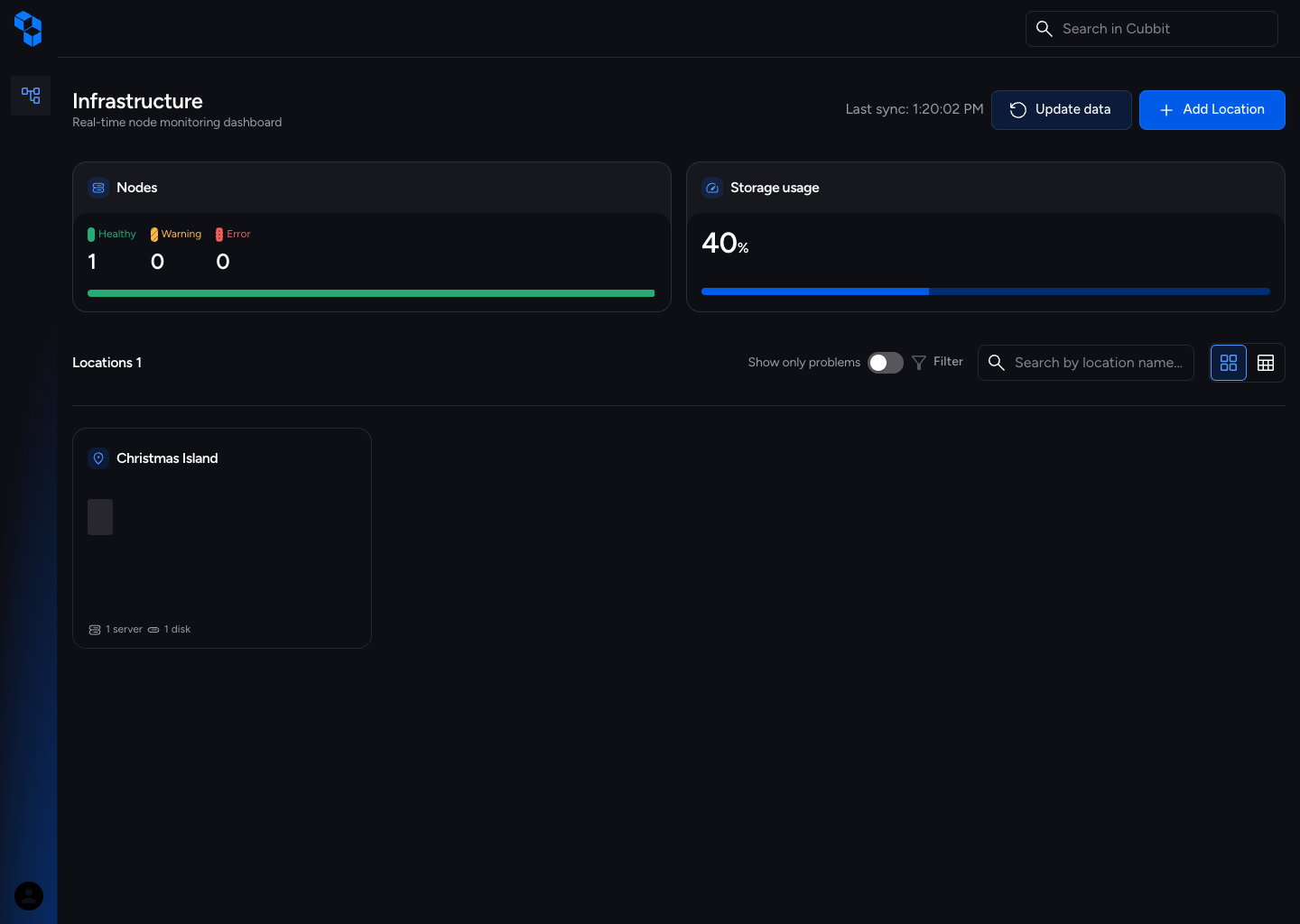
Sign in to the Composer dashboard and navigate to the Infrastructure page.
-
In the top-right corner, click the Add new location button.
-
This will open a modal containing your unique
kubectlscript. Use this command to connect your infrastructure to Cubbit by running it from your local machine.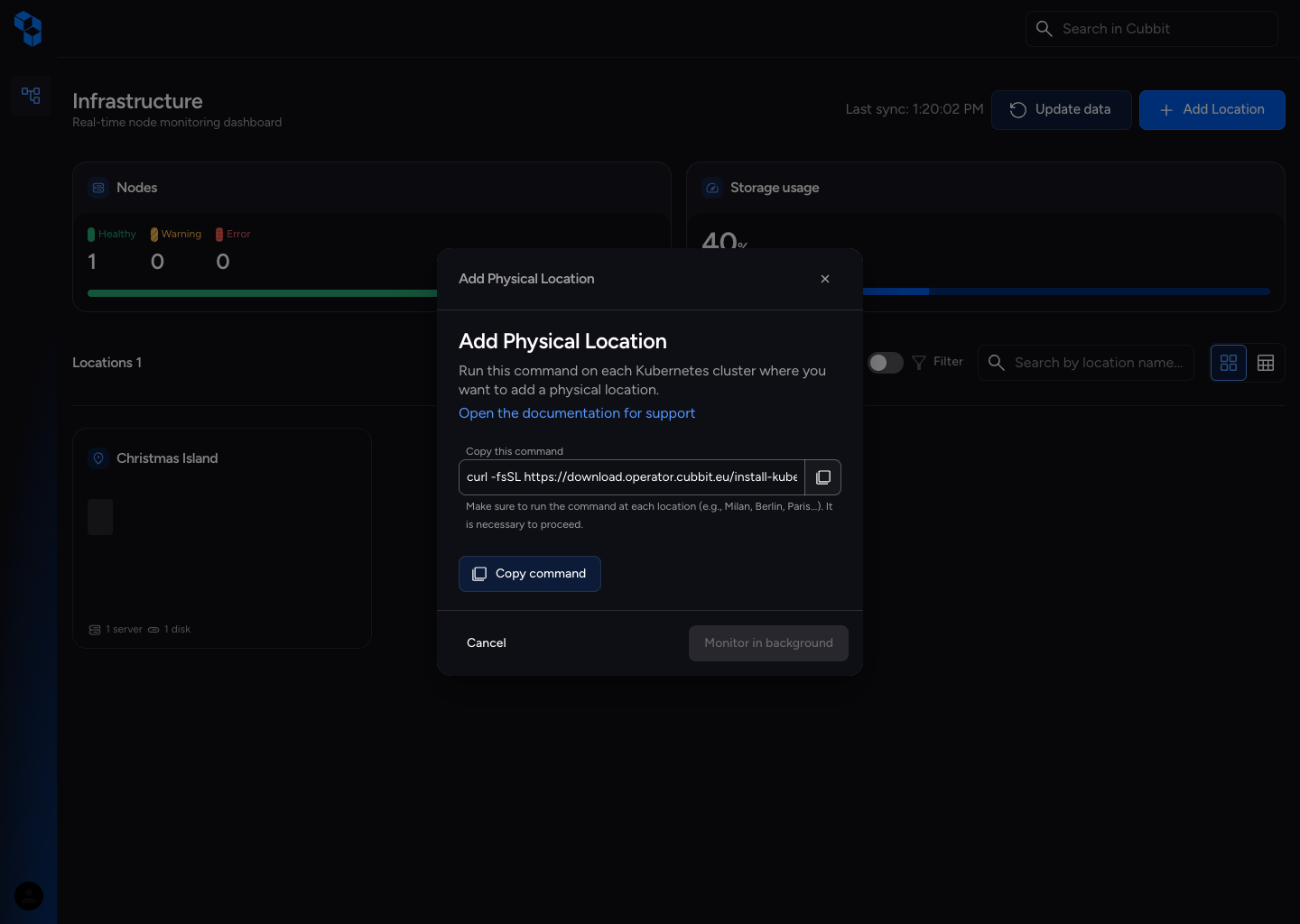
Connection & Syncing
While you run the command on your machine, the system will automatically start checking for new locations.
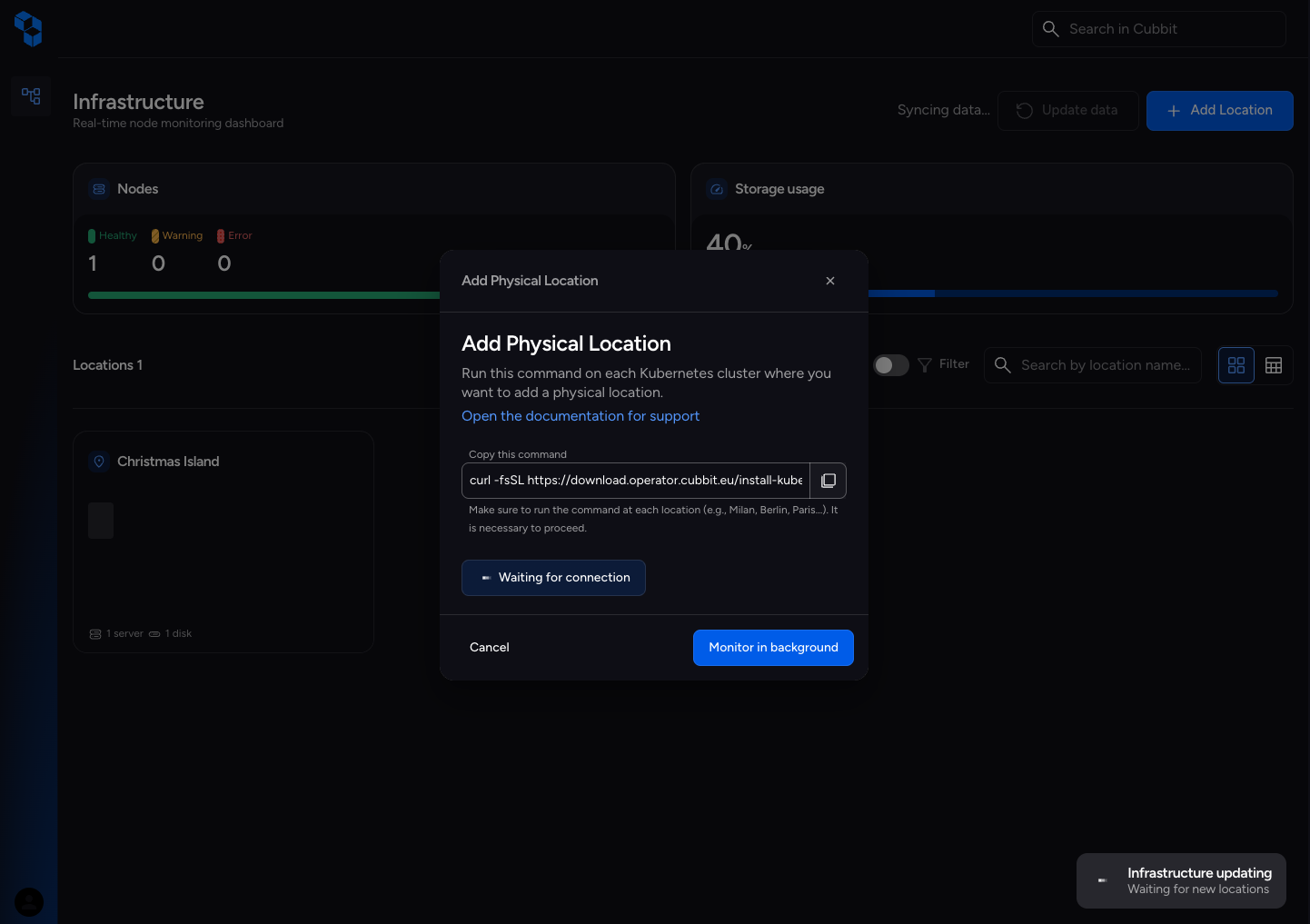
The check is automatically triggered as soon as you copy the command from the modal.
You can close the modal; the application will continue searching for the new cluster for several minutes. Once the cluster is identified, the list will update and the synchronization will conclude.
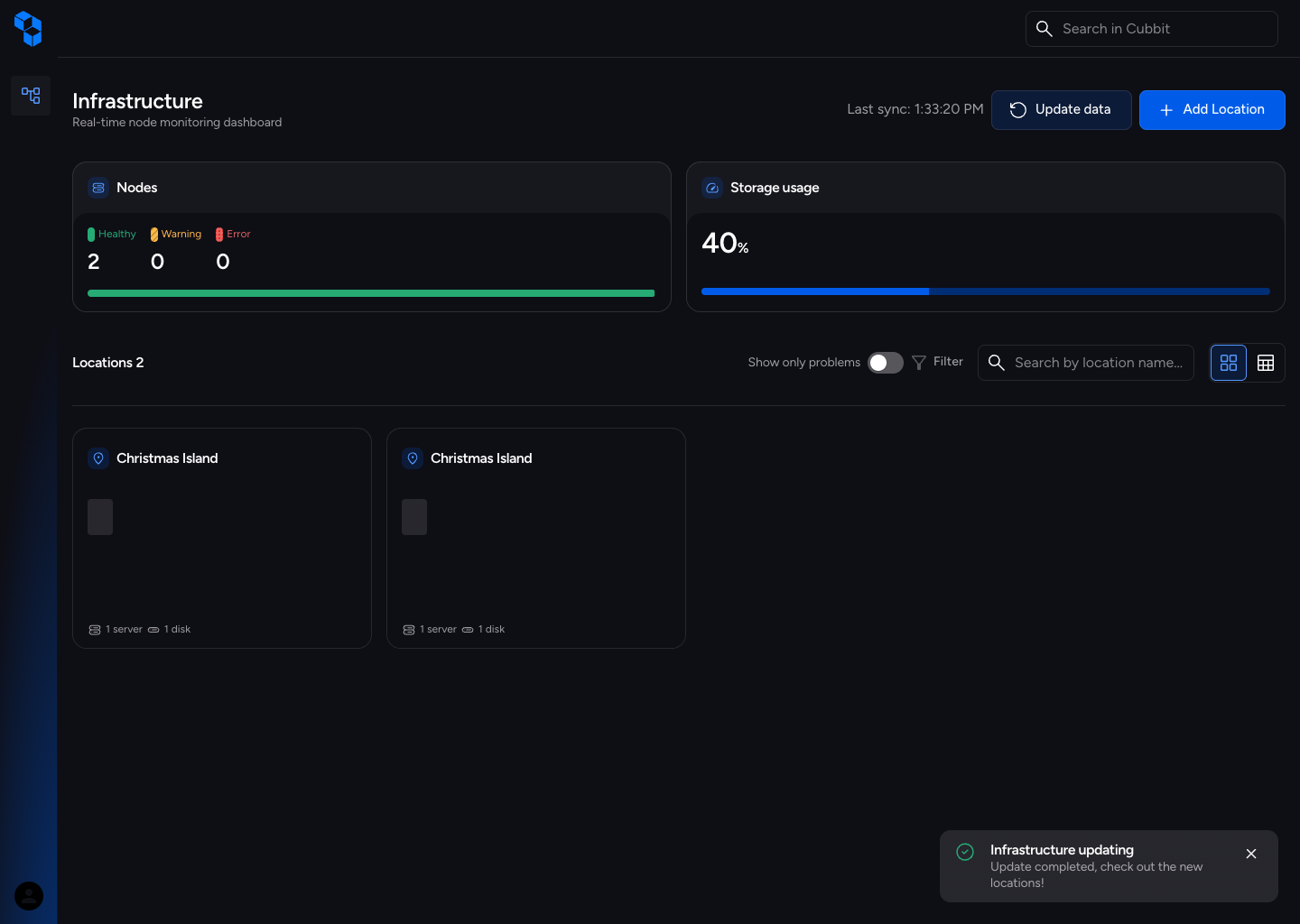
If the cluster is not found after a few minutes, you can click the Refresh button at the top to initiate a new sync.