Create a Gateway
This guide describes how to create a new Gateway in your Cubbit deployment.
If you already run a Gateway installed with the legacy installer, see Migrate a legacy Gateway to move it to a Kubernetes cluster managed by Composer instead of creating a new Gateway from scratch.
Prerequisites
Before creating a gateway, ensure you have:
- An active Cubbit organization with admin privileges
- At least one Swarm configured (the "Configure your first Swarm" onboarding step must be complete)
- At least one physical location available in your infrastructure (the "Connect your infrastructure" onboarding step must be complete)
Accessing Gateway Creation
There are two ways to start the gateway creation wizard:
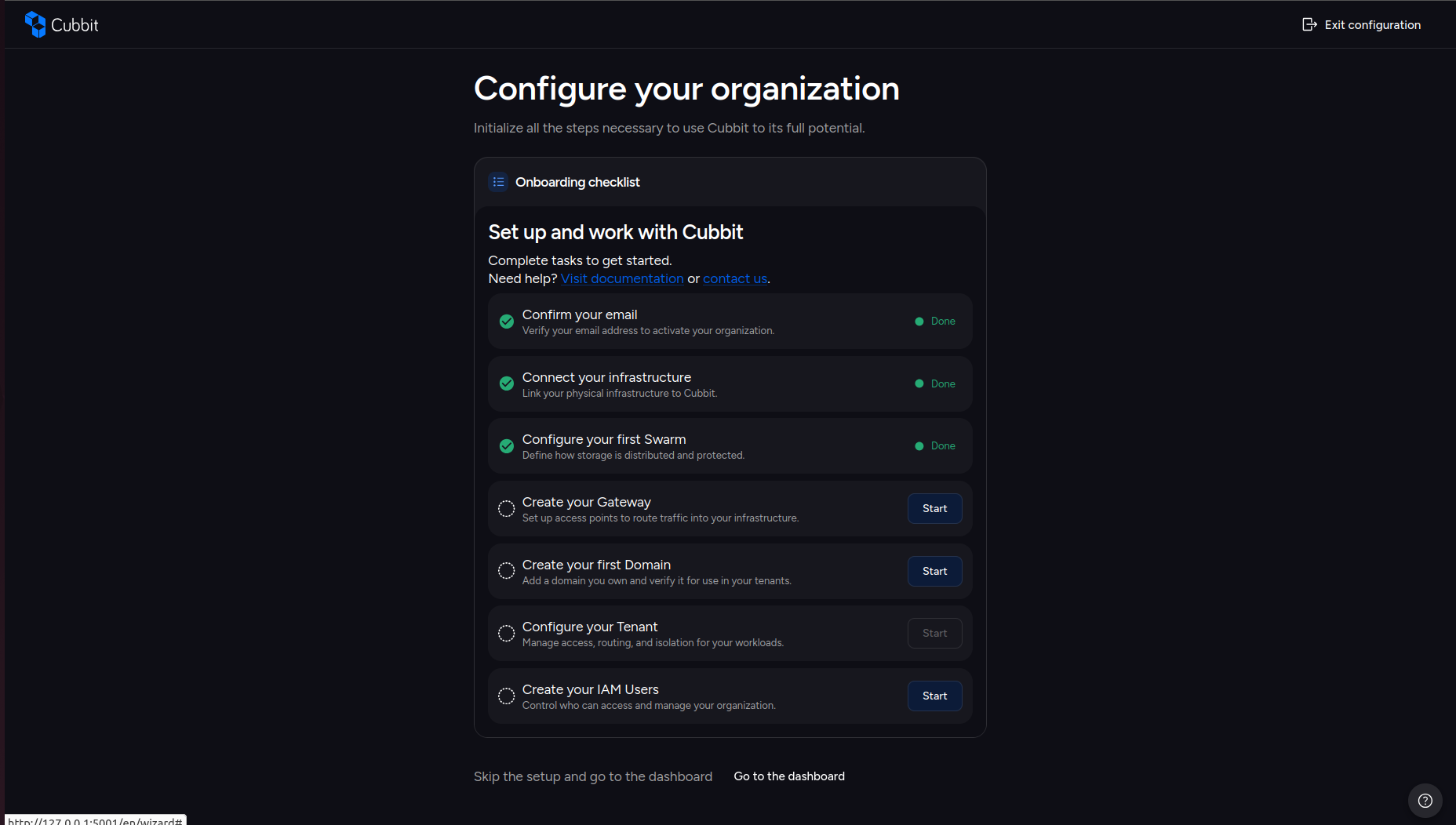
From the Onboarding Checklist
- Navigate to
/wizard(or click "Configuration" from the dashboard). - On the Onboarding Checklist, find the "Create your Gateway" step.
- Click Start.
From the Gateways Page
- Navigate to
/gateways. - Click the New Gateway button.
Both entry points open the same 3-step wizard.
Step 1 - Gateway Setup
The first step of the gateway creation wizard requires you to provide basic information about your gateway:
- Gateway name: A human-readable name for the gateway. Must be at least 3 characters.
- Gateway slug: A URL-friendly identifier. Must be at least 3 characters, lowercase alphanumeric with hyphens (e.g.,
my-gateway). No leading or trailing hyphens. The slug is auto-populated from the name but can be edited. - Description (optional): A brief description of the gateway's purpose. Maximum 120 characters.
- Select location: The physical cluster where the gateway will be deployed. Virtual clusters and clusters already used by another gateway are not available as options.
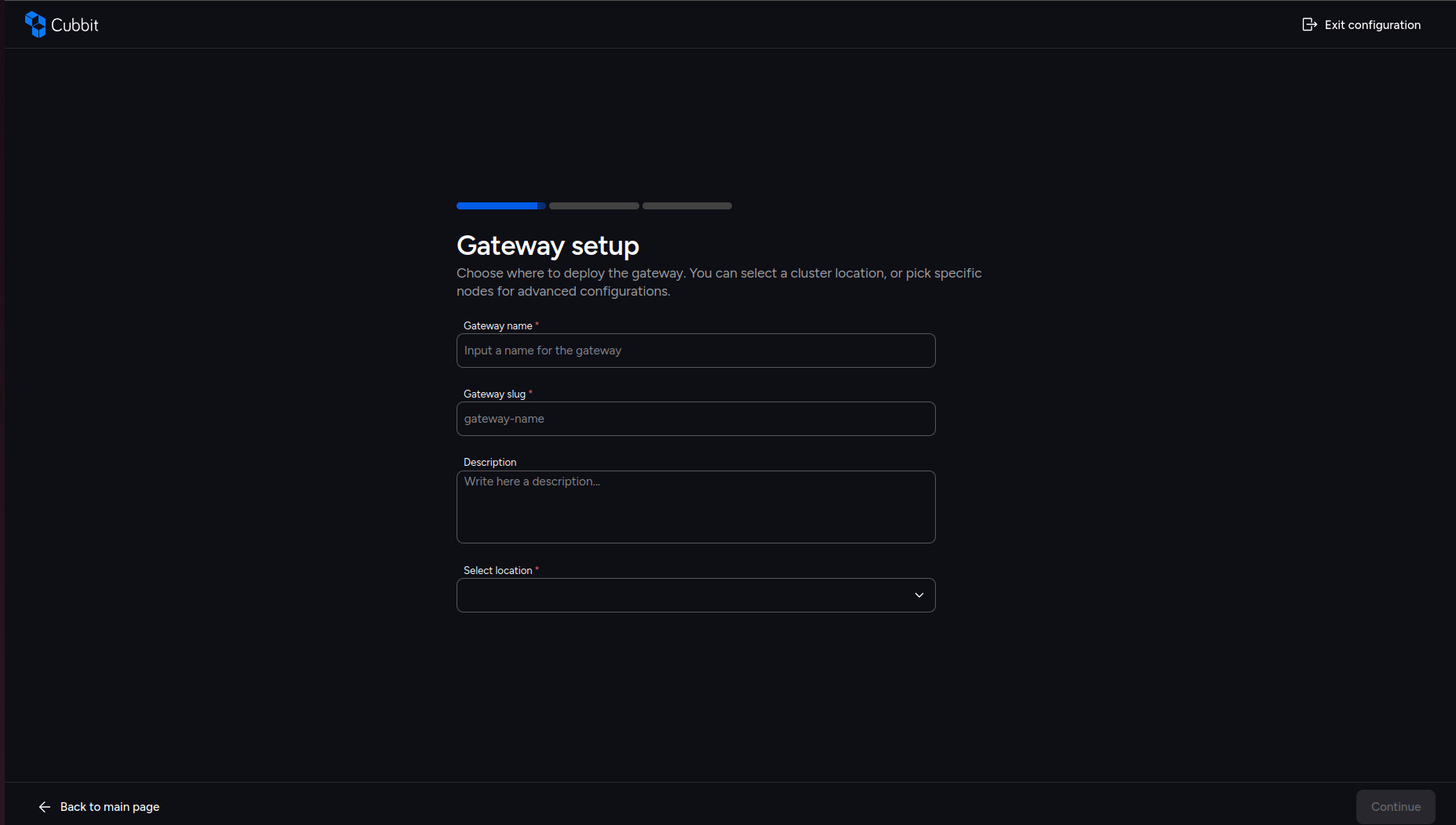
The location selection determines the geographic region where the gateway is deployed and affects latency and data residency.
Click Continue to proceed to the next step.
Step 2 - Swarm & Redundancy Class
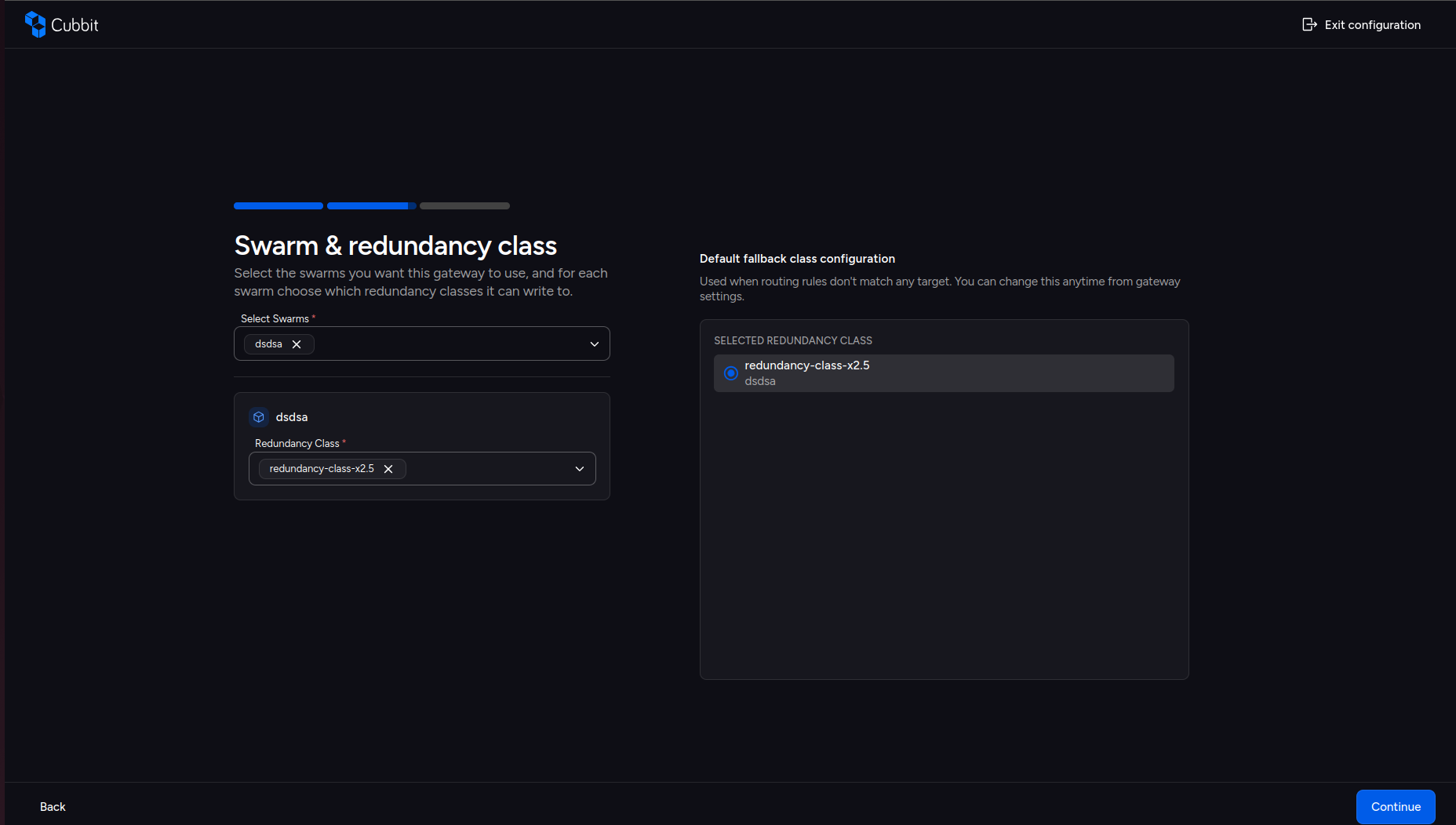
This step configures which swarms the gateway connects to and which redundancy classes it can write to.
Select Swarms
From the Select Swarms dropdown, choose one or more swarms that this gateway should route traffic to. Each swarm displays its status (Online, Offline, Pending, Warning, Error) as a color-coded tag.
Redundancy Class per Swarm
For each selected swarm, choose which redundancy classes it can write to:
- Open the redundancy class dropdown under each swarm card.
- Select one or more redundancy classes for that swarm.
- At least one redundancy class must be selected per swarm.
Default Fallback Class
On the right panel (Default fallback class configuration), select which redundancy class should be the default fallback. This class is used when routing rules don't match any target. You can change this later from gateway settings.
- All selected classes appear as radio button options.
- Click a class to set it as the default.
- A default must be selected before continuing.
Click Continue to proceed to the connection type step.
Step 3 - Connection Type
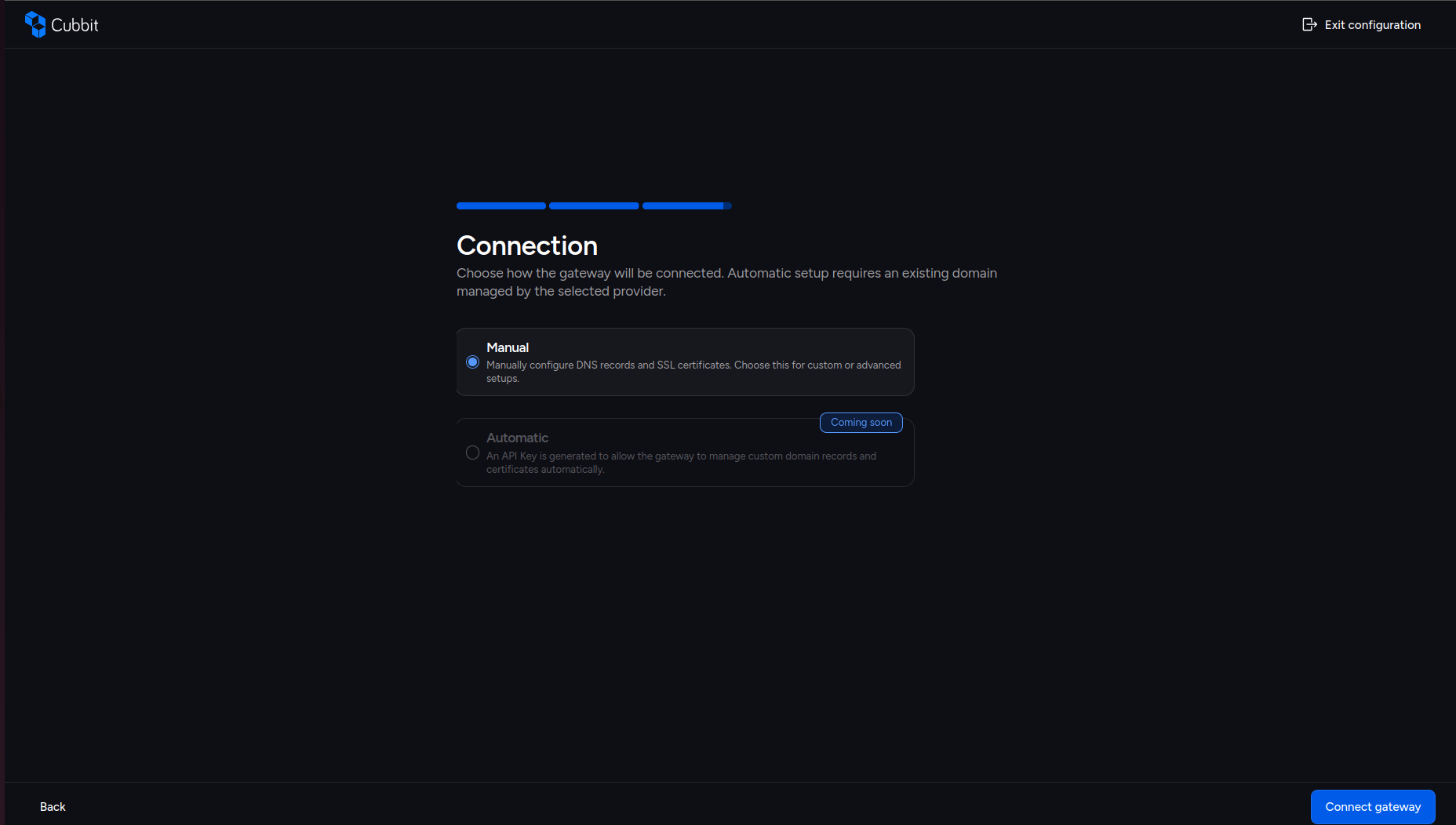
The gateway uses a Manual connection: you configure DNS records and SSL certificates yourself. Select Manual and click Connect gateway to begin the provisioning process.
Gateway Creation Progress
After submitting the form, the gateway creation runs asynchronously. A progress screen shows the various stages:
- Installing Gateway profile — Configuring Gateway profile on the cluster
- Deploying Gateway — Deploying Gateway on the cluster and connecting it to the Swarm
- Connection verification — Verifying Gateway connectivity to the Swarm
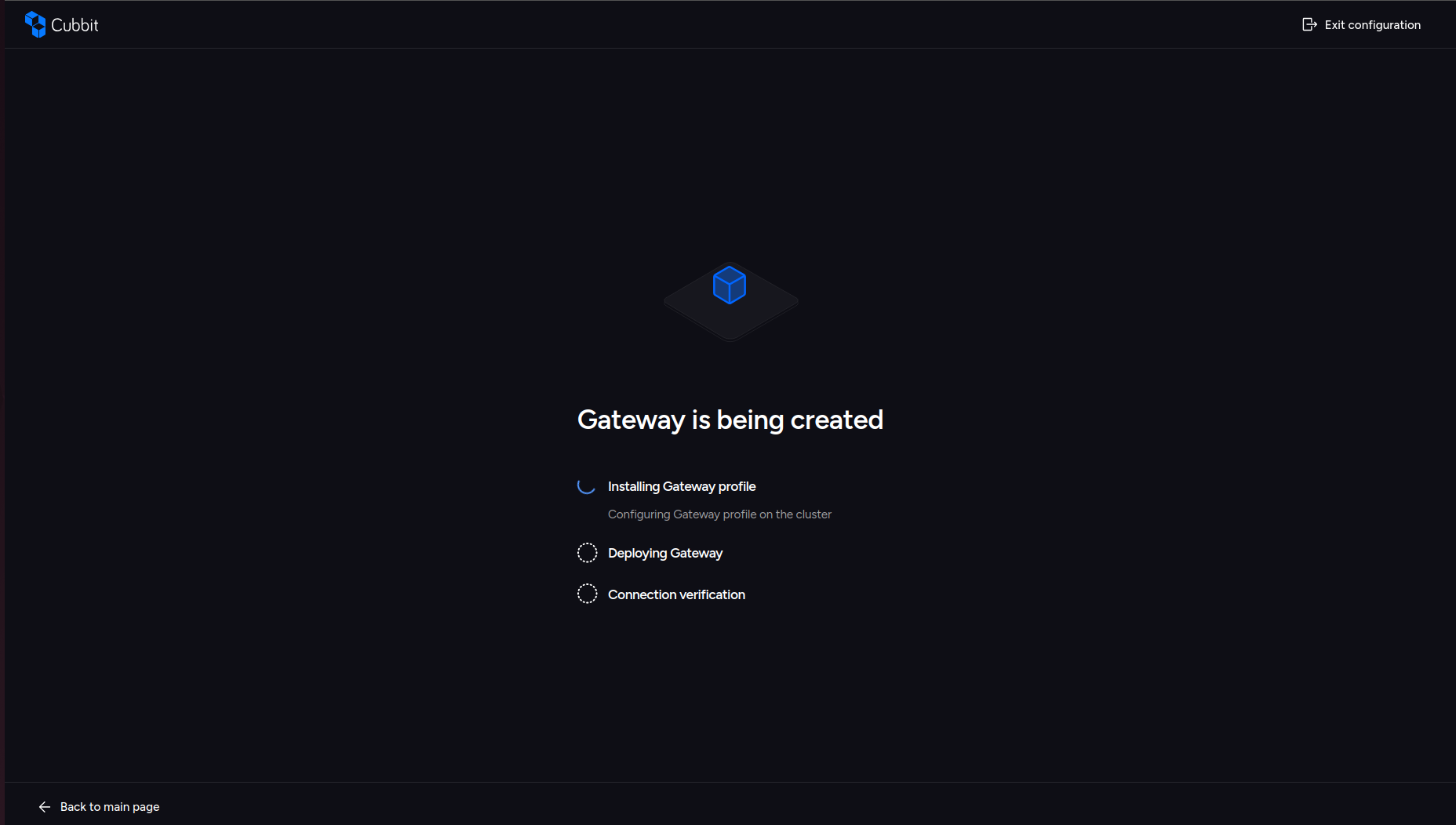
The status is polled every 5 seconds. You can:
- Wait on the page for the process to complete.
- Exit and continue in background — Navigate away and check status later from the Gateways page.
Gateway Creation Completed
Once the gateway creation is complete, you'll see a success screen with an option to return to the onboarding checklist.
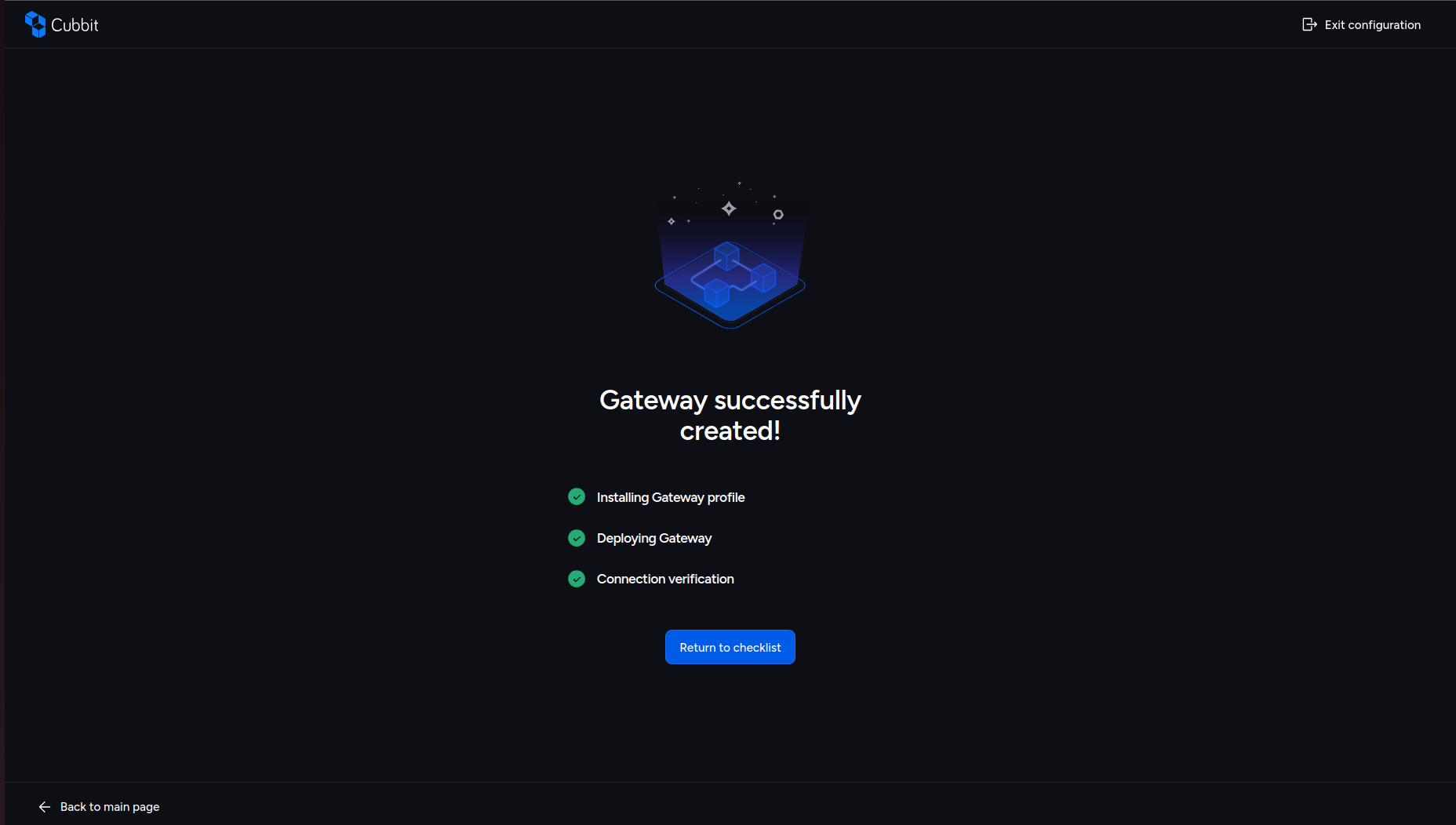
You can now navigate to the gateway details page to monitor status, geolocation, and storage class.
Troubleshooting
Common Errors
| Error | Cause | Fix |
|---|---|---|
| A Gateway with the same name already exists | Name or slug conflict with an existing gateway | Choose a different name or slug |
| There are validation errors in the form | Field validation failed (e.g., slug format, missing required fields) | Review the highlighted fields and correct the input |
| Missing permissions | Your account lacks the required permissions | Contact your organization administrator to grant access |
| No swarms available | No swarms exist in your organization | Create a swarm first from the onboarding checklist |
Slug Format
The slug must match the pattern: ^[a-z0-9]+(?:-[a-z0-9]+)*$
Valid examples: my-gateway, prod-gw-1, eu-west-gateway
Invalid examples: My-Gateway (uppercase), my_gateway (underscore), -gateway (leading hyphen)