Control access to your Tenant
Access to a Tenant is granted in two ways: users can self-register from the DS3 Console sign-up page, or Tenant operators can invite them by email. Sign-up is enabled by default and is not restricted to any email domain, so anyone who can reach the console URL can create an account and, with the default Project limit, a Project of their own.
This page covers the two recommended access models and the settings that implement them. For the remaining Tenant defaults, such as the number of Projects a user can own, see Tenant configuration and Manage Projects and Users.
Choose the access model
- Restricted self-service: if only a known group of authorised users must access the Tenant, keep sign-up enabled and add the email domain (or domains) used by those users to the allowed domains list. Every account created afterwards must match one of the listed domains. See Restrict sign-up by email domain.
- Invitation-only: if the Tenant must be accessible only to users you explicitly create, disable sign-up and invite every user from the Users list. This is the most common configuration and the recommended one when the set of users is known in advance. See Disable sign-up and Invite users to the Tenant.
When both an allow list and a block list are configured for the same Tenant, the allow list takes precedence: if at least one allowed domain is present, only matching addresses can register and the blocked domains list is ignored.
How users can join a Tenant
| Flow | Who starts it | What happens |
|---|---|---|
| Self sign-up | The user, from the DS3 Console sign-up page | The user registers with their email address. Sign-up must be enabled for the Tenant and, if domain restrictions are configured, the address must match them. |
| Invitation | A Tenant operator, from the Tenant Users list | An account is created for the invited user, who receives an email with instructions on how to access it. If the account is not accessed within 7 days, it is automatically deleted. |
Project-level access is separate from Tenant access and is managed in the DS3 Console: a Project owner invites users from Project -> IAM -> Users -> Invite user and assigns the required policies or groups. For more information, see Manage Projects and Users.
Disable sign-up
To disable self-registration for a Tenant:
- In the DS3 Composer header menu, select Tenants, then open the Tenant you want to configure.
- In the left sidebar, select Settings.
- In the Console sign-up section, select Sign-up disabled, no new user can register to the console.
- Select Save.
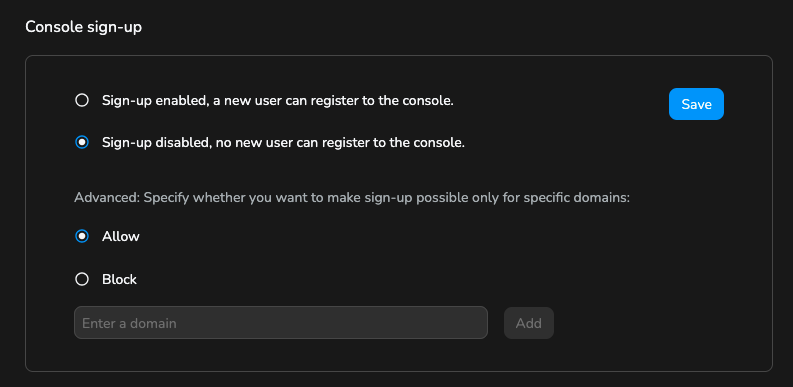
Disabling sign-up does not prevent Tenant operators from creating users: invited users can still be added from the Users list. Existing accounts and pending invitations are not affected.
The restriction applies to every self-registration path, not only the console: sign-up requests sent directly to the API are rejected with a signup disabled error.
After sign-up is disabled, visitors to the DS3 Console experience the following:
- The Sign up button is no longer displayed.
- Opening the sign-up URL redirects the visitor instead of showing the registration form.
- First-time sign-ins with OAuth are rejected with the
Sign-up is disablederror, because no account can be created. A first SAML sign-in that would create a new account fails as well, but the console shows a generic sign-in error. - Existing accounts and operator invitations keep working normally.
Restrict sign-up by email domain
To keep sign-up enabled but limit it to specific email domains:
- In the Console sign-up section, select Sign-up enabled, a new user can register to the console.
- Under Advanced: Specify whether you want to make sign-up possible only for specific domains:, select Allow or Block.
- Type a domain in the Enter a domain field and press Enter, or select Add.
- Repeat step 3 for every domain you want to configure. Use the remove (trash) button next to an entry to delete it.
- Select Save.
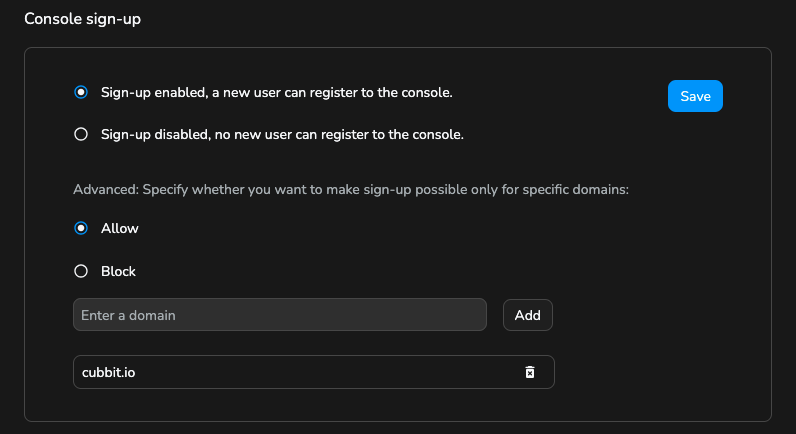
Notes on domain matching:
- Allow mode restricts registration to the listed domains; all other addresses are rejected.
- Block mode rejects the listed domains while keeping registration open for all others. Use it, for example, to exclude consumer email providers.
- The allow list takes precedence over the block list: as soon as one allowed domain is configured, only matching addresses can register.
- Domains are matched case-insensitively.
- A malformed entry reports
Invalid domainand is not added to the list.
The domain input is disabled while sign-up is set to disabled. To configure domains, keep sign-up enabled first.
Invite users to the Tenant
To create a user directly, without self-registration:
- In the DS3 Composer header menu, select Tenants, then open the Tenant you want to configure.
- In the left sidebar, select Users.
- Select New user. If no users exist yet, the list displays "It appears that no users have been created yet. Click the button below to create a new one." and the same button.
- On the Invite new users page, type one or more email addresses in the
Emails*field. Separate multiple addresses with a comma or a space. - Select Invite users.
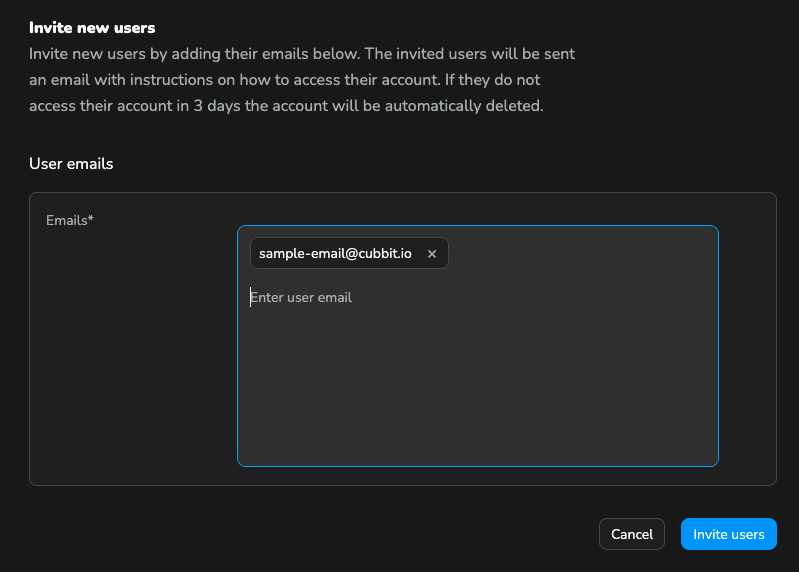
Invited users receive an email with instructions on how to access their account. If they do not access the account within 7 days, it is automatically deleted.
Tenant operators manage users from the Users list. For the available per-user actions (delete/restore, freeze, force log out, and per-user settings), see Manage Projects and Users.
Inviting a user to the Tenant does not grant access to any Project. Project-level access is managed in the DS3 Console from Project -> IAM -> Users -> Invite user, where the Project owner assigns policies or groups. See Manage Projects and Users.
Limit Project creation
Every user can create or own a limited number of Projects. The Number of project Tenant setting (default 1) defines the limit applied to newly created users. The limit of an existing user is changed from that user's settings and is not affected by later changes to the Tenant default.
See Tenant configuration for the Tenant default and Manage Projects and Users for the per-user settings.
Troubleshooting
| Symptom | Likely cause | Resolution |
|---|---|---|
A user sees Sign-up is disabled while signing up or during a first OAuth sign-in; a first SAML sign-in fails with a generic sign-in error | Sign-up is disabled for the Tenant. | If self-registration is intended, enable sign-up in the Console sign-up section. Otherwise, invite the user from the Users list. |
A user sees Sign-up is disabled for this email domain | The email domain does not match the allow list, or it is present in the block list. | Add the domain to the allowed domains or remove it from the blocked domains in the Console sign-up section. |
| SSO or SAML sign-in fails | The account cannot be created or matched. | See Identity Provider (IdP) connection for the sign-in flow and the SAML troubleshooting sections. |